
Fix Code 55 errors in Device Manager for Thunderbolt 3 devices with a PowerShell script
Recently, I upgraded my home network to 10gbps switches and routers. I purchased a 10gbps Thunderbolt 3 adapter with ethernet from Amazon for my PC that only had 2.5gbps ethernet. After it arrived, I plugged it in and it worked great with a full 10/10gbps connection.
After a reboot, however, my PC running Windows 11 wasn’t able to see it anymore in Network Connections and it wasn’t connecting to my network.
This post has a PowerShell script to fix the issue and a brief explanation of where the setting might be coming from.
I started troubleshooting and saw that Device Manager shows the Device Status with the following error:
This device is blocked from starting while the user is not logged in. (Code 55)
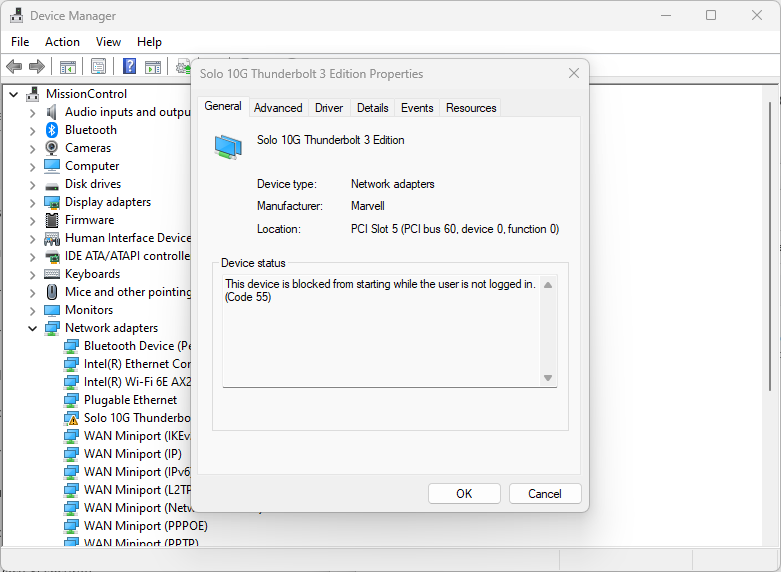
I connected to wifi and tried updating drivers, etc. but nothing was working. It looks like this is an issue with Kernel DMA Protection, a security feature in Windows that’s intended to protect direct memory over PCI devices. It seems like an security overreaction for most situations, but I found a Reddit post with the Registry change that was necessary to bypass the protection.
I created a quick PowerShell script that makes this change. Run this code as Administrator:
$registryPath = "HKLM:\Software\Policies\Microsoft\Windows\Kernel DMA Protection"
$valueName = "DeviceEnumerationPolicy"
$valueType = "DWord"
$valueData = 2

if (-not (Test-Path $registryPath)) {
    New-Item -Path $registryPath -Force
}

Set-ItemProperty -Path $registryPath -Name $valueName -Value $valueData -Type $valueType
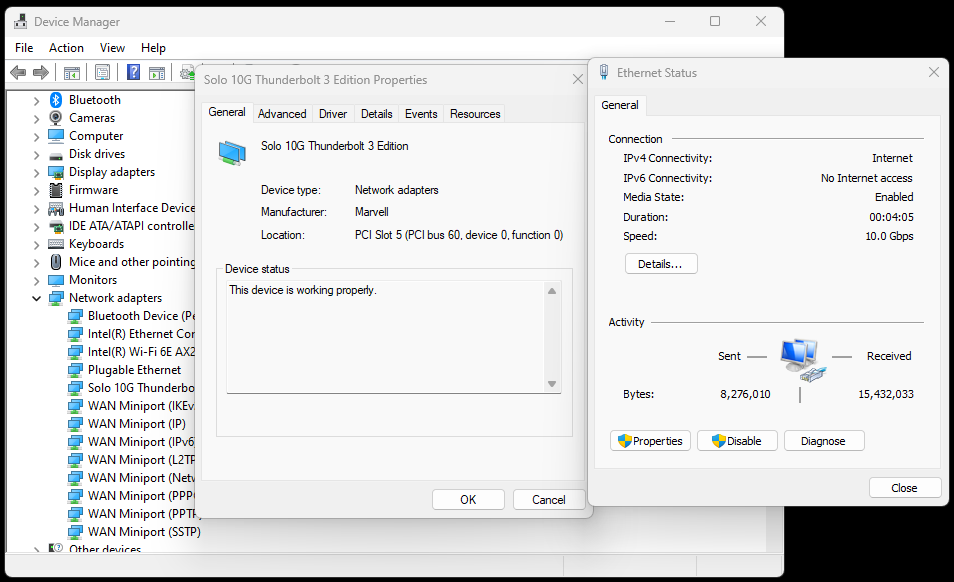
After running the command, I rebooted my PC and the adapter showed up as expected in Device Manager and is running at the full 10gbps duplex speed:
After some more investigation, I saw that this Kernel DMA setting is enforced through an Intune Security Baseline:
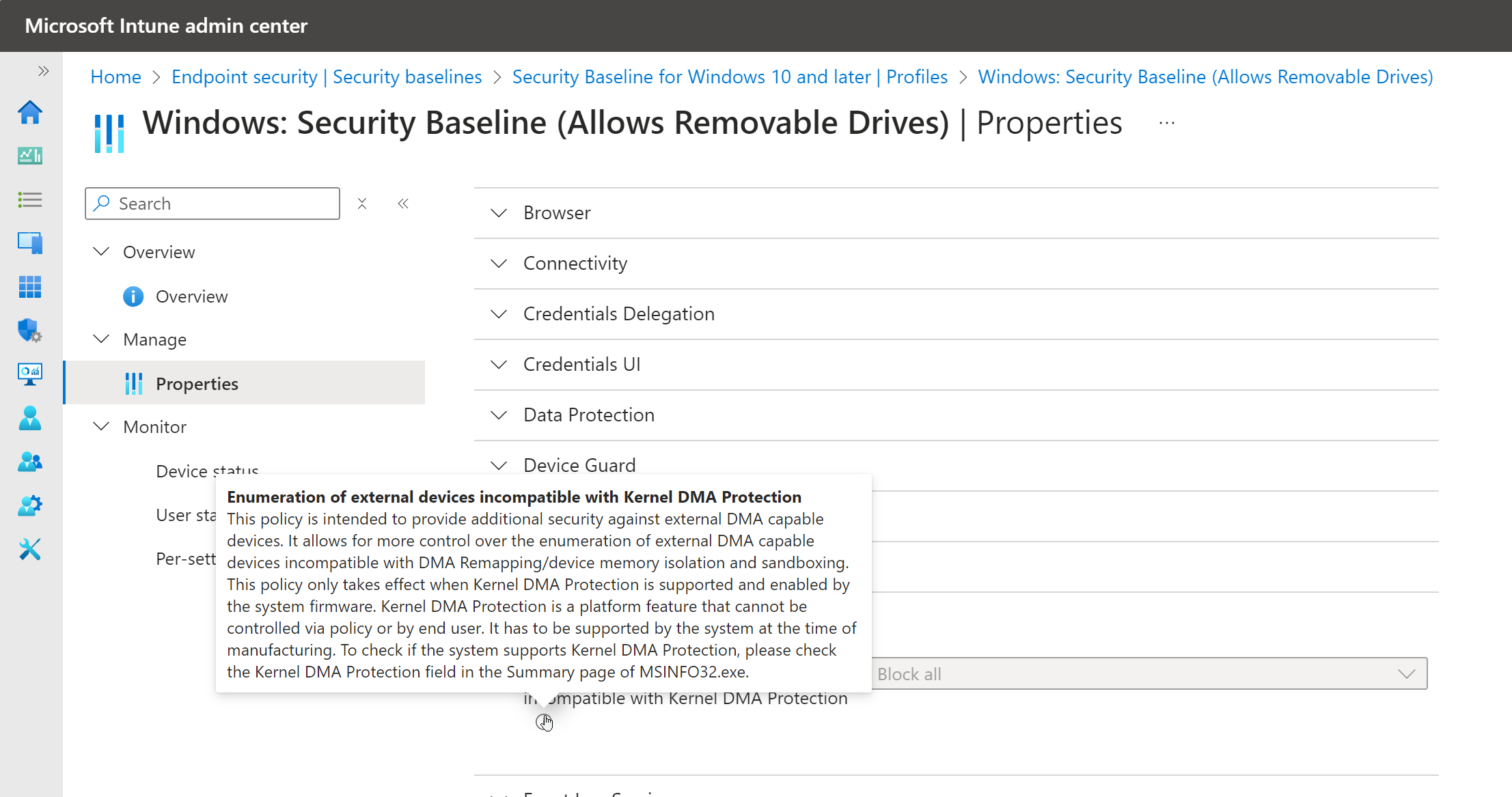
If you’ve enabled this Intune policy and applied it to PCs, this PowerShell script can be run as a Remediation Script or as a one-off on the user’s PC to allow other Thunderbolt peripherals to work before login (USB-C docks, etc.).
References
- 10gbps Thunderbolt 3 adapter with ethernet - https://a.co/d/06rYyhh
- Reddit post - https://www.reddit.com/r/Thunderbolt/comments/125tpca/comment/k9mbc0o/?utm_source=share&utm_medium=web3x&utm_name=web3xcss&utm_term=1&utm_content=share_button
- Microsoft Documentation - Kernel DMA Protection - https://learn.microsoft.com/en-us/windows/security/hardware-security/kernel-dma-protection-for-thunderbolt